
 Back
Back
Spend less time building slides and more time tracking how they perform | May Update
Timea Borbath · May 28, 2026
Build a tombstone, a profile, or an overview slide in seconds
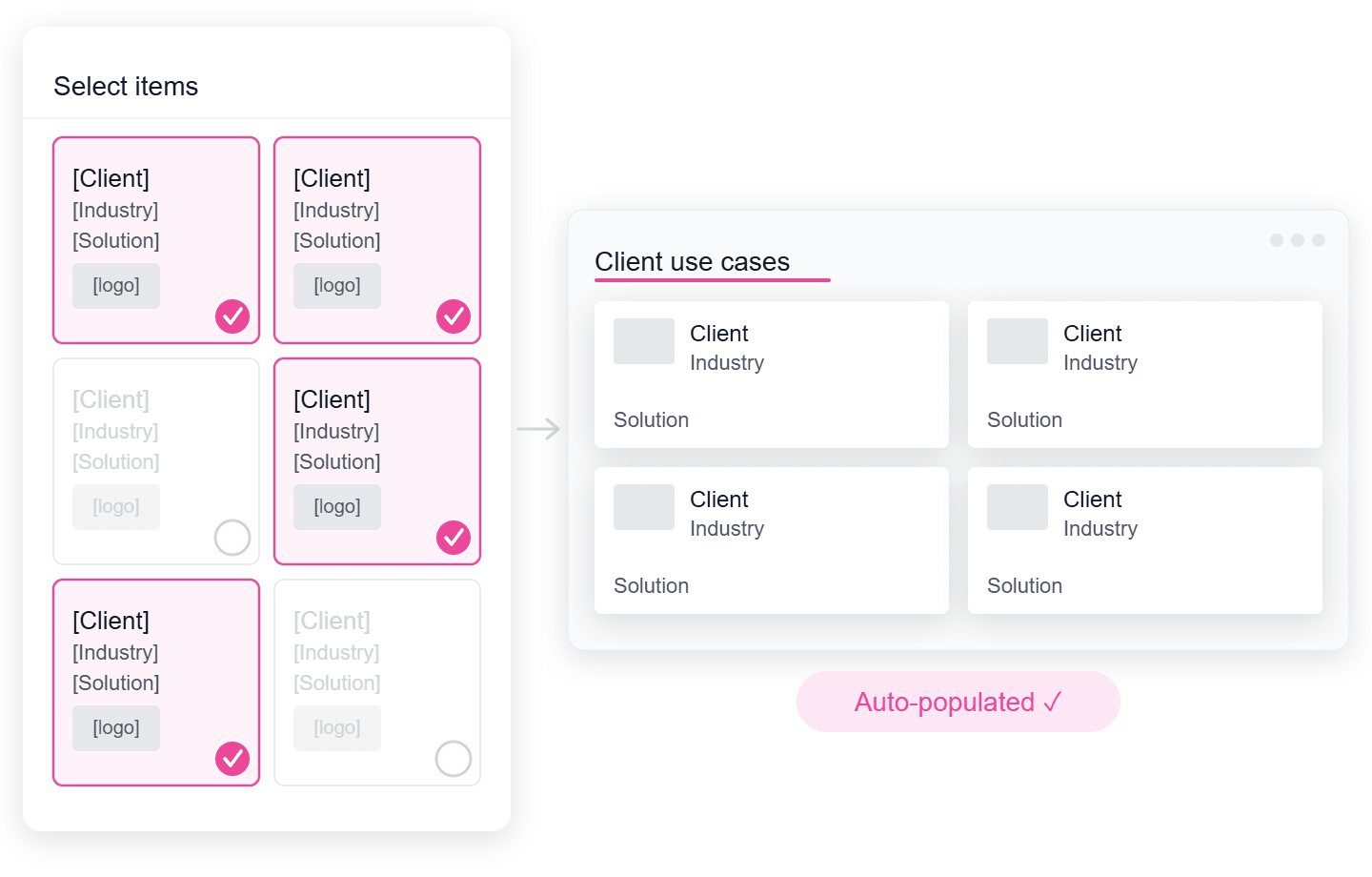
Tombstones, team profiles, and reference cases usually get assembled manually, slide by slide, each time someone needs them. Data Tables take that work off your plate.
End users can add missing values as they work, so the data stays fresh without one person carrying all of it. You can also store fields purely for filtering such as a deal's country, letting users narrow in on the right records without that detail ever showing up on the slide.
The same table can sit behind a rich individual profile and a pared-down team overview, drawing a different slice of the data for each. Set it up once, reuse it everywhere.
This is the first version of Data Tables, and more is on the way. Talk to your customer success manager or sales lead to get it switched on for your account.
Replace post-send silence with engagement data
After you send a deck, it is hard to know what happens next. You do not really know whether the client opened it, whether they got past the agenda, or which slides held their attention.
Send and Track changes that. You share a file directly from PowerPoint with controls for password, expiration date, and whether the recipient can download a PDF or only view in the browser. There is also room for a note to colleagues, the option to assign teammates to the link so everyone sees the same data, and the ability to attach files from other sources.
When they open it, the detail comes back to you: which slides they spent time on, and how long, all kept against the link. A Shared Links view gathers every tracked link in one spot: opens, last activity, slides viewed, and which links are drawing the most attention. This makes it easier to tell which conversations are warming up and where your time is best spent. Choose how you hear about it: an alert the moment a link is opened, or a digest once a day or once a week.

Ask AI to rework your active slide
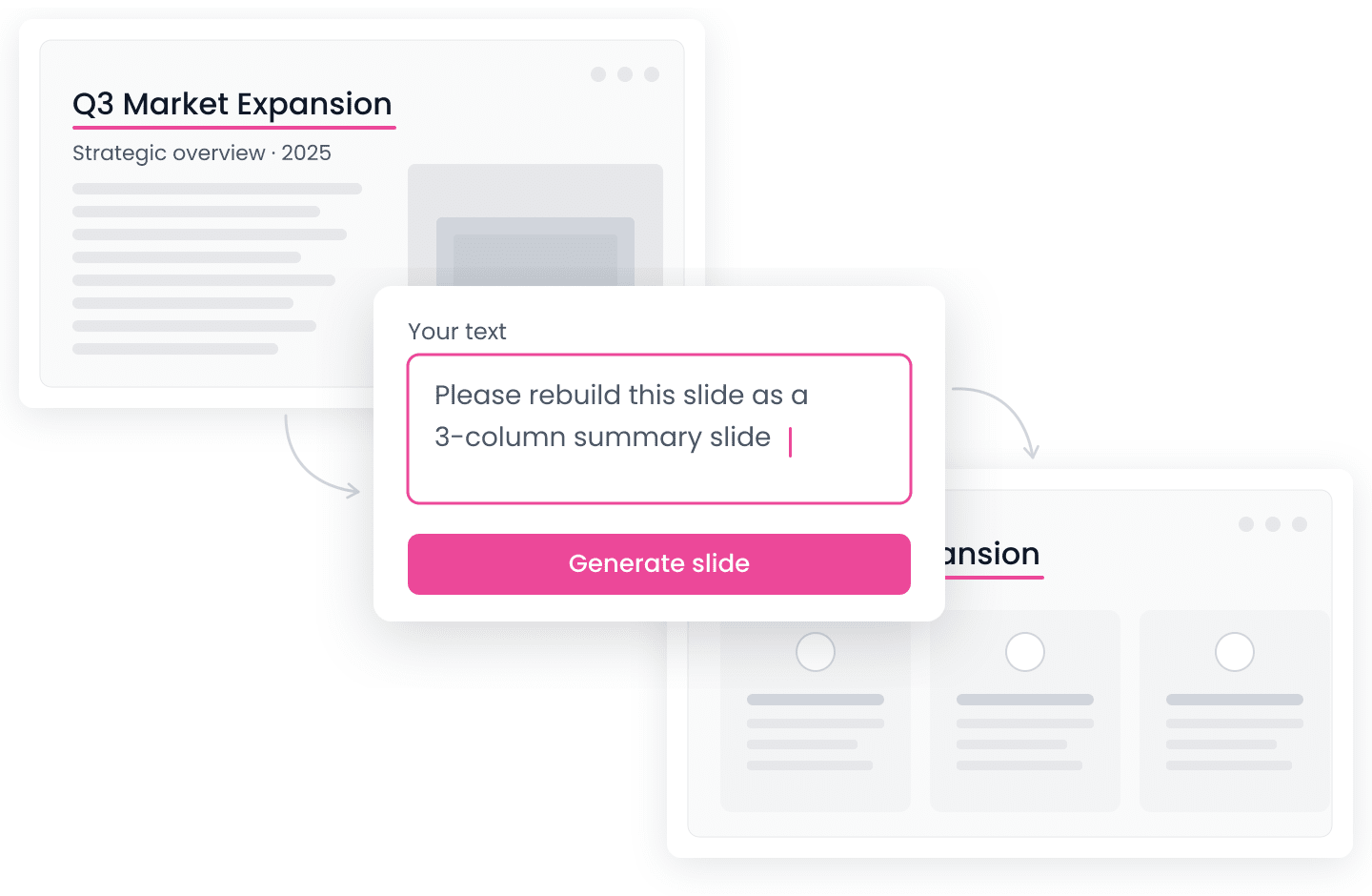
Reworking a slide no longer means copying its content out and rebuilding it from scratch.
AI Text-to-Slide now works from the live slide in PowerPoint. Open Text-to-Slide in SlideHub and you can rebuild your current slide in one of two ways. Add a prompt, like "make a three bullet point version," and it uses the slide as its starting point, applies your instruction, and offers a few alternative takes to choose from. Or rebuild with no prompt at all, and it keeps the existing content and simply gives you fresh layout options.
You stay in control of how much changes. Preserve mode holds your wording as close to the original as possible and shows a summary of anything that shifted, so nothing slips by. You can also let it rewrite the content as it rebuilds. Either way, the slides generate in the background and drop into place as each one finishes, so you can keep working in the meantime.
Manage your library with saved filters and inline editing
This release refreshes the manager interface and adds a run of small improvements for anyone managing content in SlideHub.
The manager view is now clearly set apart from the end user view, using a high-contrast look so there's never any doubt which mode you're in. Navigation has shifted from the top to the left, freeing up room and lining up with how the end user side is laid out. Filtering is tidier as well: every filter lives in a single dropdown, and you can store a set of filters and call it back whenever you like, putting your most-used view a click away.
A new table view lays out assets with compact thumbnails next to their category, subcategory, tags, and placeholders, working the same for slides, images, and icons. You can adjust categories and subcategories, add new ones, and create tags inline rather than opening each asset individually.
We hope these refinements will help you spend less time managing and organizing your assets.

Questions about any of these updates? Reach out at [email protected].